FocusNexus
A calm, single-page command center for a working scientist's life: goals, projects, tasks and deadlines on one screen — running entirely in your browser, saving to your own Google Drive. Keep track of your total future time commitment. Working with others? Create a team and your lab or group edits shared lists together — everyone's changes merge automatically, and personal lists stay private.
- runs in your browser
- your data, your Drive
- no server, no tracking
- free
What it does
One page that already knows what today needs
Everything lives in a simple hierarchy — areas of your life, each holding goals, projects, tasks and subtasks — and a handful of views turn that one list into answers.
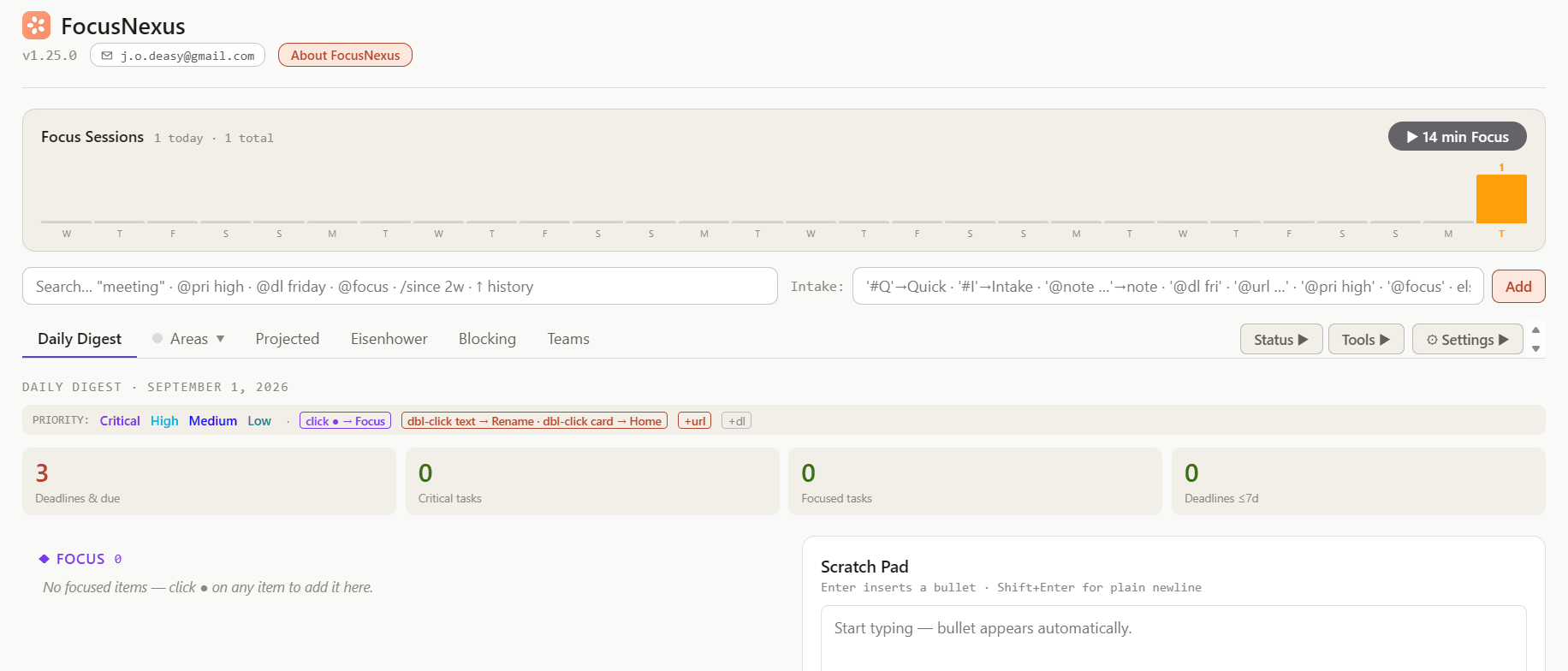
Daily Digest
The landing view: today's focus items, upcoming deadlines, recurring tasks due for review, and a scratch pad — assembled for you every time you open the app.
Eisenhower matrix
Every open task with a date on it, plotted by urgency and importance, so the "do this first" decision is made by looking, not deliberating.
Time-blocking board
Drop any task onto a single day's board of half-hour slots and that day takes physical shape — commitments become blocks of hours, and the free time you actually have becomes visible before you promise it away.
Projected workload
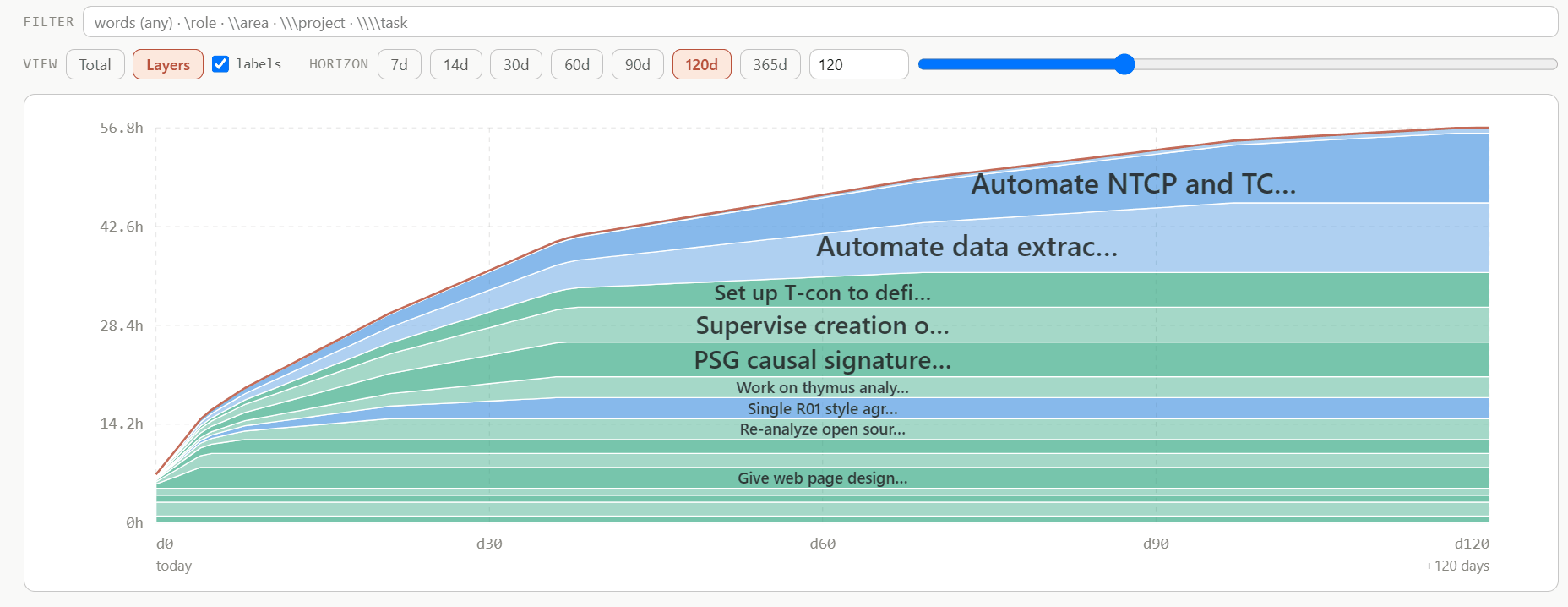
A chart of the hours your time-estimated tasks imply over the weeks ahead — each estimate spread across the days until its deadline, stacked task by task — so crunches become visible while there's still time to move them.
Goals above projects
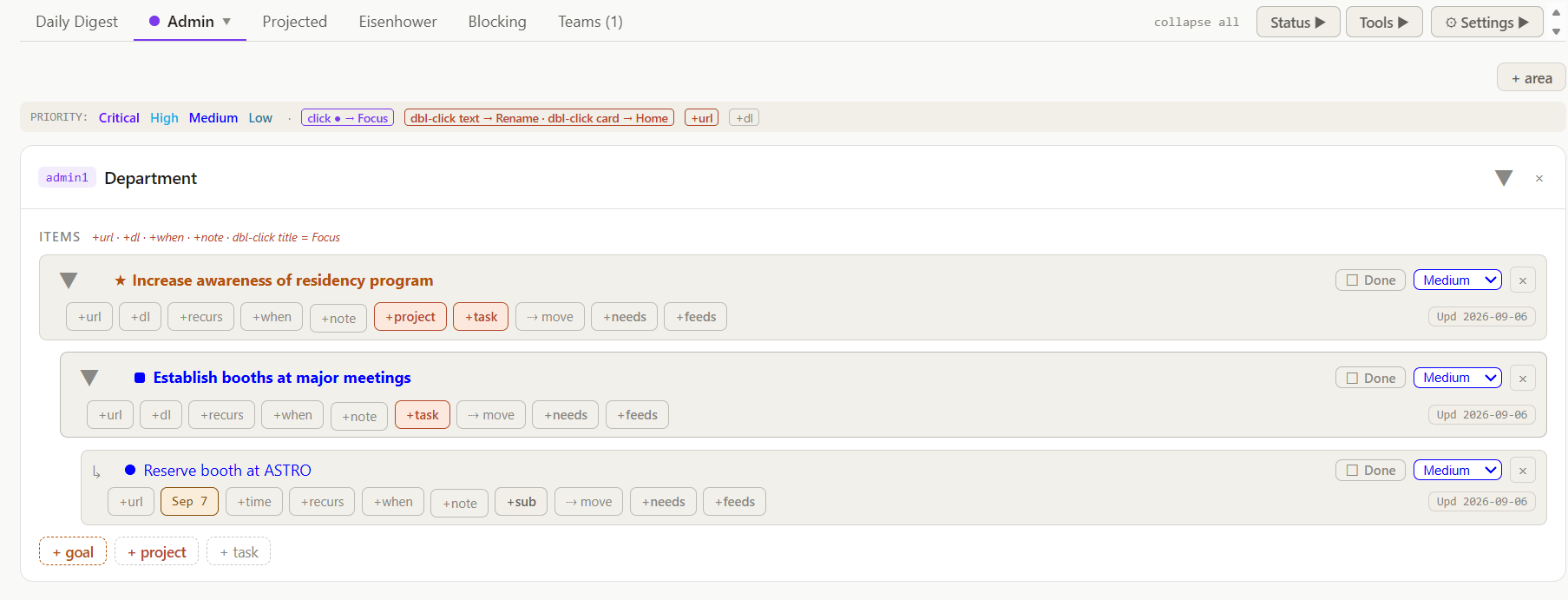
Star-marked goals sit above the projects and tasks that serve them, each row carrying its deadline, notes, links, priority and a small "Upd" date showing when it last changed.
Focus sessions
A one-click timer for distraction-free work blocks. Finished sessions are logged, and a step-counter-style tally on the Digest keeps a gentle scoreboard for deep work.
Teamsbeta
Small shared workspaces for a lab or group: everyone edits the same task lists, changes merge automatically, and no one's personal lists are ever shared.
A look inside
What it looks like on an ordinary Tuesday
Real screens from the desktop app (v1.25–v1.31), unretouched. Most are populated with a small set of sample items; the workload chart and the Eisenhower matrix are the author's own, as of September 6 and September 17, 2026.
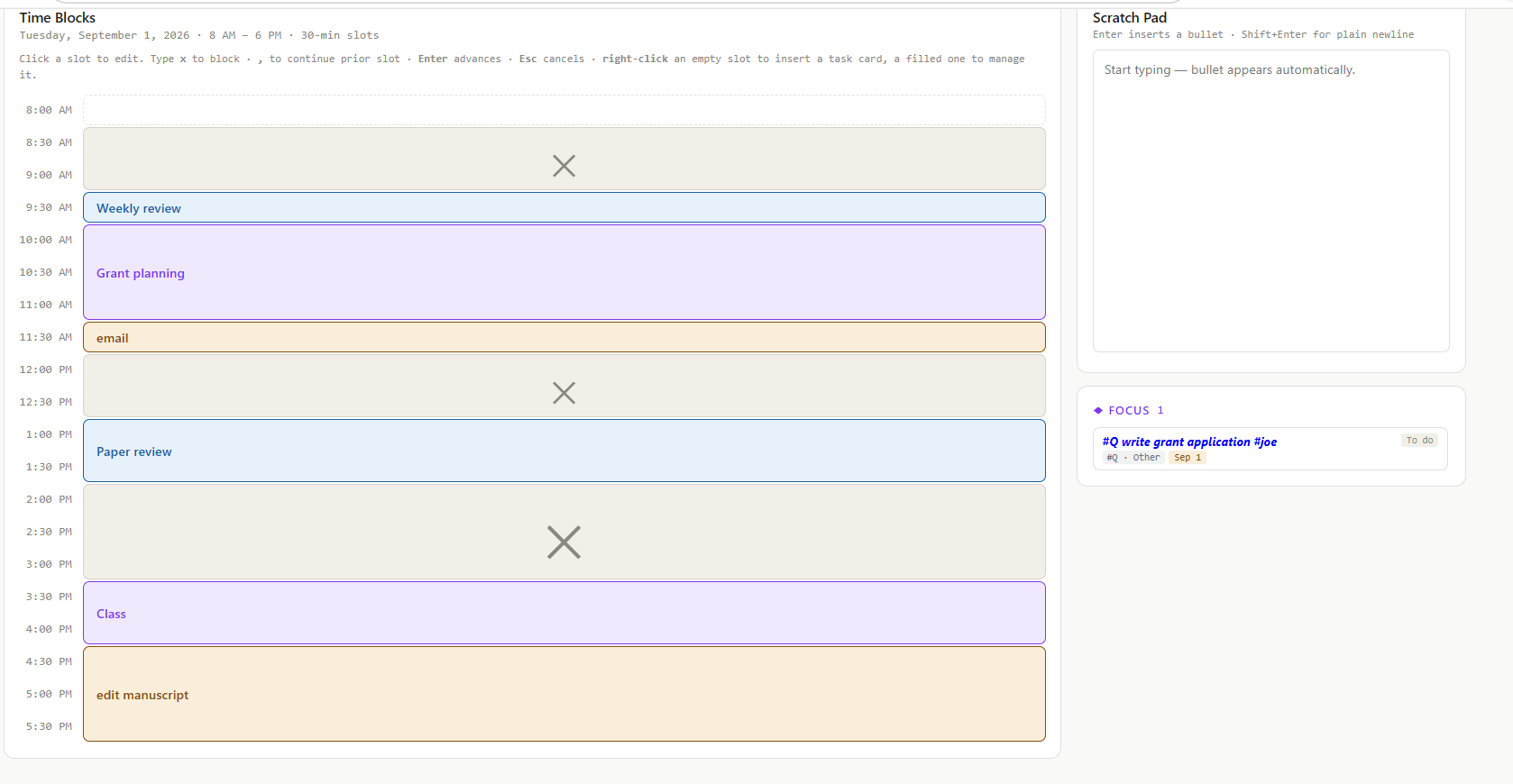
x to block one, , to continue the slot above; right-click an empty slot to drop a task card into it. The scratch pad and focus list sit alongside so the plan and the day's intent are on one screen.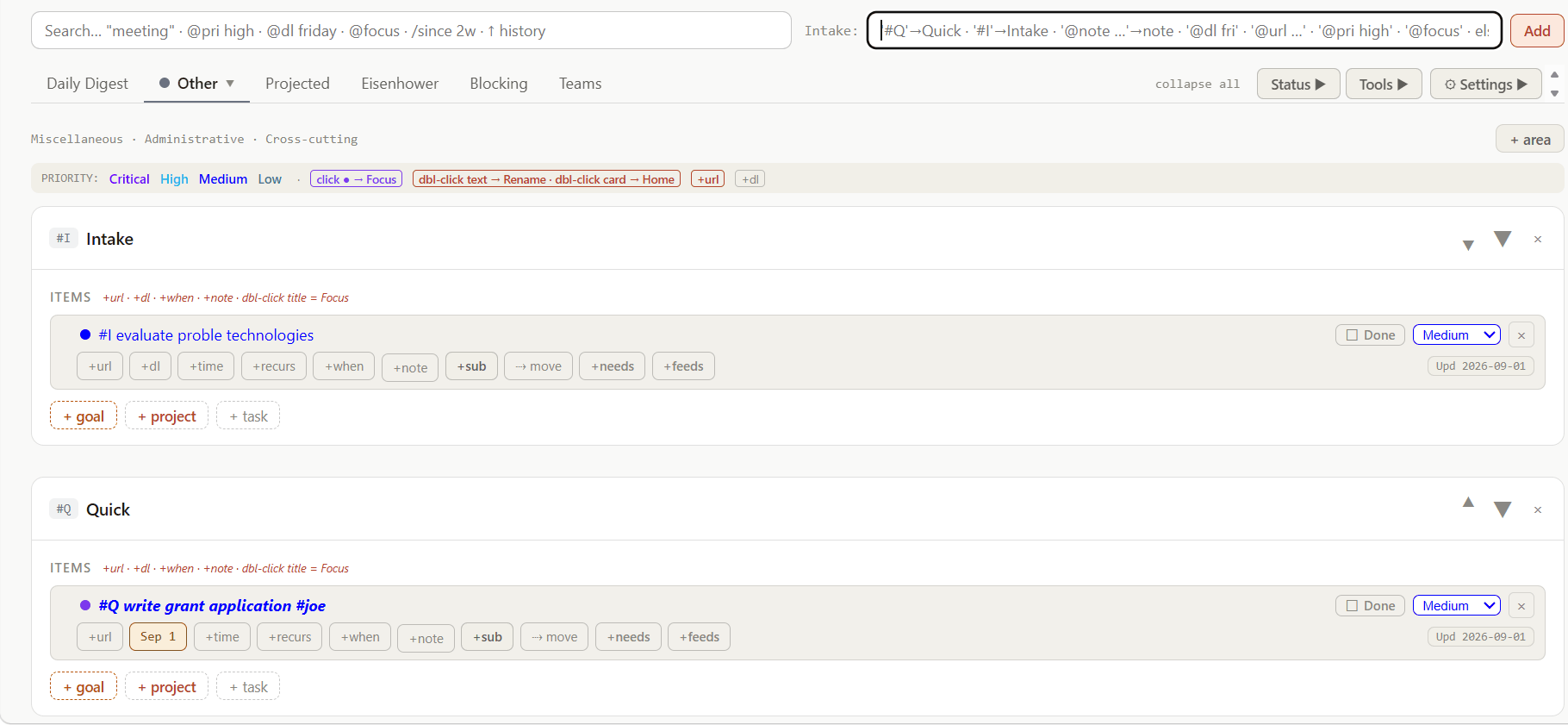
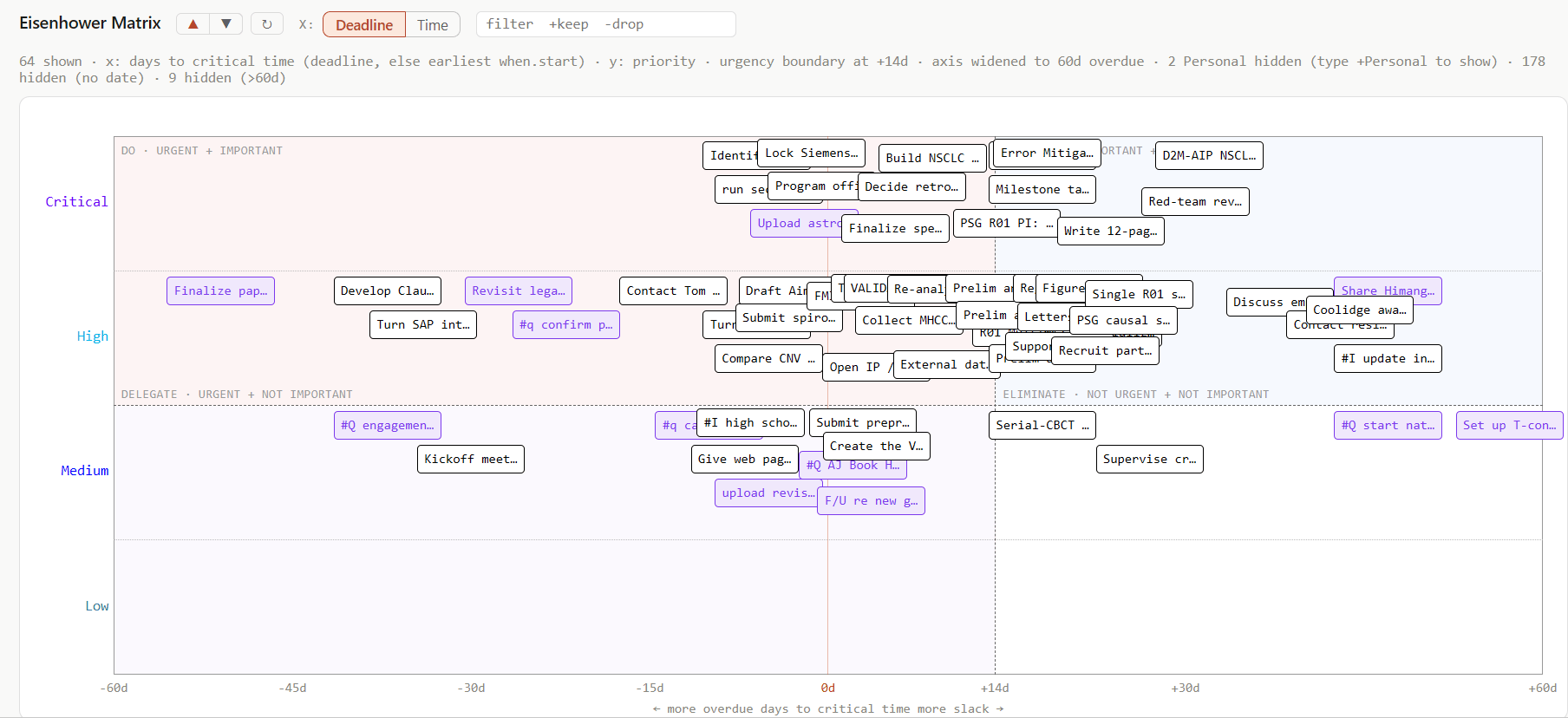
+term keeps matching items, -term drops them, several terms combine — and the overdue side of the axis stretches only as far as what is drawn. When boxes crowd, ▲ ▼ resize them and ↻ cycles the stacking order so buried boxes come to the top without anything moving; Deadline / Time switches the x axis to hours of estimated work, for spotting quick wins. The summary line accounts for what is not shown: undated items, items more than 60 days out, and the Personal role, which stays hidden unless asked for.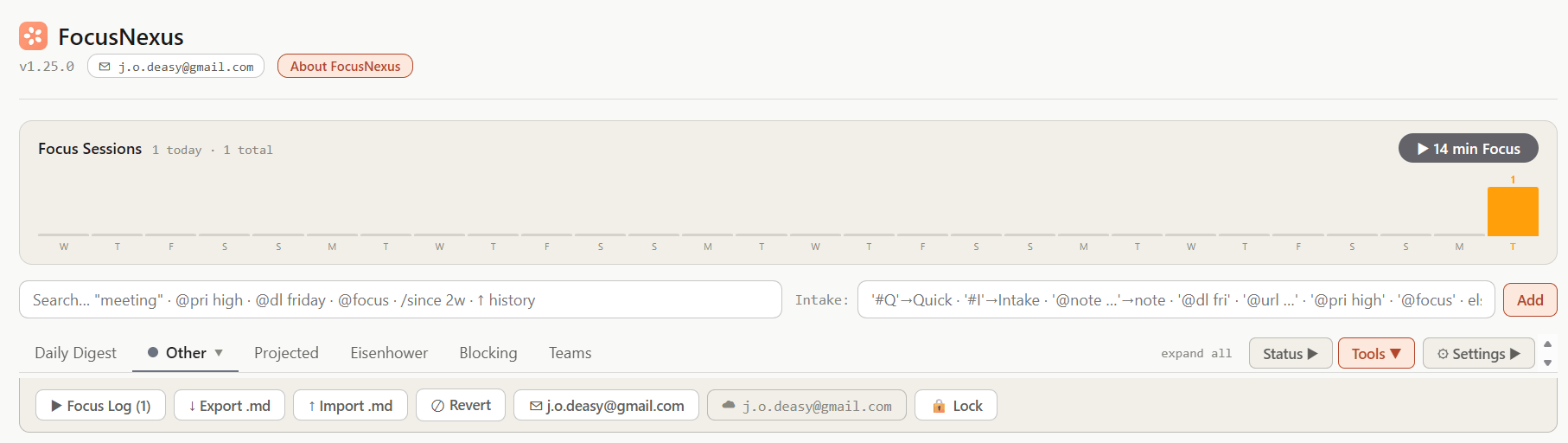

Your data
Nothing leaves your own accounts
FocusNexus is a single web page — there is no server behind it, no account to create, and no analytics. When you connect it to Google Drive, it saves your lists into a folder it creates in your Drive, keeping a rolling month of daily snapshots so yesterday's state is always a Revert button away.
Its Drive permission is the narrowest Google offers: the app can only see files it created itself — never your documents, photos, or anything else in your Drive.
The full details are in the FocusNexus Privacy Policy. For the technically curious, The FocusNexus engine goes deeper — the motivation and design goals, how the data flows, and how teams stay in sync without a server.
Getting started
From zero to organized in about 30 minutes
There is nothing to install and no account to create. The whole setup is: open the page, connect your Drive, tell it your email — then shape it around your life.
First, on your computer
-
Open the app
Open FocusNexus in any modern browser and bookmark it — that bookmark is the installation. The page works immediately; everything below just makes it yours.
-
Connect your Google Drive
Press Connect Google Drive and choose the Google account whose Drive should hold your data. FocusNexus creates its own
FocusNexusfolder there and can touch nothing else in your Drive — the permission it asks for covers only files it created itself.A one-time notice you may see: FocusNexus is currently in Google's app-verification queue, so the consent screen may warn that Google hasn't verified the app yet. If you're comfortable proceeding, choose Advanced and continue — the permission being granted is still the narrow one described above. This notice disappears once Google's review completes. -
Set your FocusNexus ID
A banner asks for one email address — this becomes your ID, shown at the top of the page and, if you ever join a team, the name teammates see on your items. A work address is the sensible choice. You can change it any time via the ✉ chip.
-
Shape your roles and areas
A role is a hat you wear — for an academic that might be Lab, Teaching, Service, Personal. Pick a role from the role menu ▾ next to the view tabs; the same menu's + New role… adds one. Inside a role, + area gives related work a stable home — Grants or Course X, say. Keep going until the role menu reads like a map of your actual life; everything else lives inside the areas.
-
Put in your first real items
Inside an area, add a ★ goal (something that matters this year), a project that serves it, and a few tasks — with subtasks if a task has stages. One-off tasks can stand alone; nothing forces the full hierarchy. Ten honest items beat an exhaustive inventory — add the rest as it surfaces.
-
Pick up three @ shortcuts
While naming any item:
@dl fridaysets the deadline,@pri highthe priority,@focusputs it on today's focus list. That trio covers most days; the FAQ lists the rest, and the same vocabulary works in search. -
Start each day in the Daily Digest
The Digest assembles itself every time you open the app: today's focus items, approaching deadlines, recurring things due for review, and a scratch pad. Treat it as the morning briefing — most days you never need to leave it. The built-in focus timer logs deep-work sessions in a small daily tally.
-
Plan with the matrix and the workload chart
When you're deciding rather than doing: the Eisenhower matrix plots every open, dated task by urgency and importance so "what first?" is answered by looking, and the Projected workload chart shows the hours your time-estimated tasks imply over the weeks ahead — crunches appear while there's still time to move them.
-
Tune it in Settings
The ⚙ menu controls the focus timer (shown or hidden, and its interval), which view greets you at startup, and whether a banner announces new team items. Settings save with your data, so they follow you to every computer where you open the page.
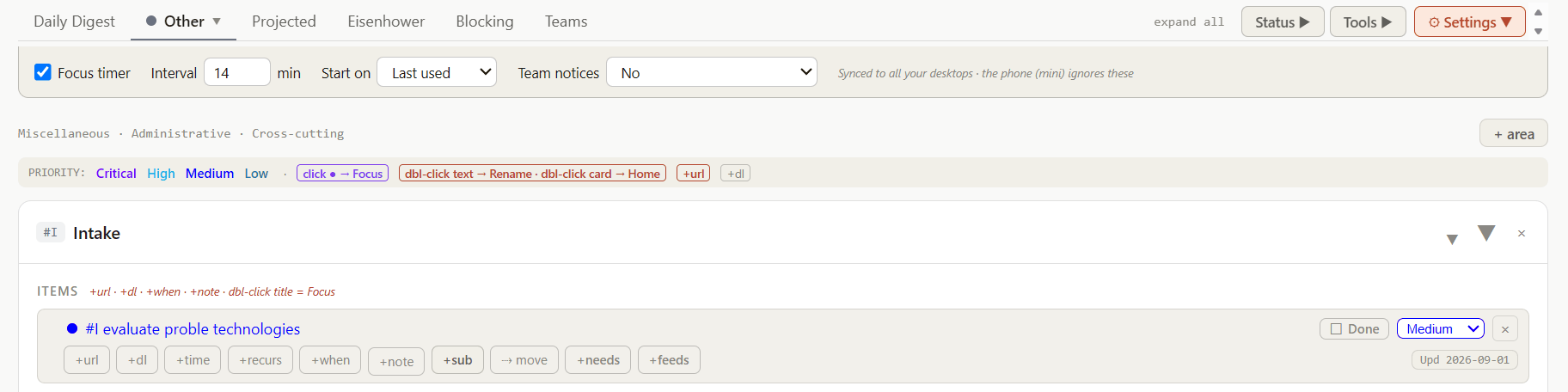
The ⚙ Settings strip: focus timer on or off and its interval, the startup view, and team notices.
Then, on your phone
-
Add the phone version to your home screen
Open the phone version in your phone's browser. On iPhone: Safari's share button → Add to Home Screen. On Android: Chrome's menu → Add to home screen. Connect the same Google account — the Data in: line under the header shows which one it is, and Account switches it — and it stays in sync with your computer through Drive: same data, a design made for a phone's screen and pace.
If someone invited you to a team
-
Join with the invite text and passphrase
From the team's owner you'll have an invite text (one long line starting
FNTEAM1:) and a passphrase, sent separately. On your computer, open the Teams tab, paste the invite, and enter the passphrase — your FocusNexus ID (the email you set in step 3) becomes your username automatically. From then on the shared board sits in its own tab: everyone's edits merge automatically, and your personal areas are never visible to the team.
If you want to start a team
A team is a shared board that lives in its own Google Drive — not in yours, and not in any member's. Setting one up takes ten minutes and happens once; after that, members come and go with an invite.
-
Give the team its own Google account
Create a dedicated Google account for the team — for example
mylab.focusnexus@gmail.com— and keep its password somewhere safe. The team's data will live in that account's Drive, and the app will sign in as that account, once, to set the folder up. Do not use your personal Google account: anyone who holds the team's invite and passphrase can read and write everything the app stores in the team account, which is exactly right for a team account and exactly wrong for your own. -
Create the team
On your computer, open the Teams tab and choose + Create team. Give it a name and a colour; your FocusNexus ID is already filled in as the owner. Enter the OAuth client secret (on this site, the site owner provides it to people setting up teams — see the contact address in the footer; a self-hosted copy uses its own client's secret) and choose a passphrase of at least 12 characters, which you'll type twice. Press Sign in as team account + create and, in the Google window that opens, sign in as the team account from step 12 — not as yourself. The app creates the team's folder, seeds your member file, and shows the invite text: one long line starting
FNTEAM1:. Copy it; you can also fetch it later with the ✉ invite chip in the team header. -
Invite members — two things, two channels
Each member needs the invite text and the passphrase. Send them by different routes — the invite by email, say, and the passphrase in person or by message — because together they are the key to the board. Members join as in step 11; their own FocusNexus ID becomes the name on their items, and nothing else is set up on their side. Add areas, projects and tasks to the board and assign them; every change is merged for everyone and recorded in the ☰ Team Log. If the passphrase ever leaks, the owner can rotate the team's credential from the Teams tab: the team, its folder and its data stay, and a fresh invite goes out to members.
And that's the whole system. Everything saves automatically — to your browser as you type, and to a daily snapshot file in your Drive, of which about a month is kept, with a one-click revert to yesterday. The rhythm that makes it work is modest: open it in the morning, live in the Digest, and glance at the matrix when the day needs re-deciding.
Run it yourself
On your own computer, or on your own site
The hosted page is the easy way, and it updates itself. But the whole app is a handful of static files, so you can also run it from your own machine — or host a copy of your own and change it.
Why "Save page as" doesn't work. A page opened from a file on disk (file://) has no web origin, and Google's sign-in is tied to the page's origin — so a saved copy can never connect to Drive, however complete the download. Since v1.29.1 the app says so in a banner when it happens. The fix is to serve the folder from a tiny local web server at a fixed address that is registered with the app's sign-in: http://127.0.0.1:8734. The launcher below does exactly that.
Run it on your own computer
-
Download the bundle and install Python 3
Download focusnexus-local.zip — both apps, the launcher, the local server, icons and license, built from the same files as the live site. Unzip it into a folder of its own. The launcher needs Python 3 (on Windows, tick Add python.exe to PATH during install); nothing else.
-
Double-click the launcher
launch.bat on Windows, launch.command on a Mac (the first time, right-click → Open, since it is an unsigned script). A small window opens and stays open — that window is the server; closing it stops the app. Windows SmartScreen or macOS Gatekeeper may warn about an unrecognised script; both launchers are short plain-text files you can read first.
-
Connect Drive as usual
Your browser opens
http://127.0.0.1:8734/focusnexus.html. Press Connect Google Drive and sign in exactly as on the hosted page. It reads and writes the sameFocusNexusfolder in your Drive, so your data is the same wherever you open it. The server listens on127.0.0.1only — nothing on your network can reach it.
Three things to know. The local copy is frozen at the version you downloaded — the version is printed in the app header, the hosted page updates itself, and the change log shows when a fresh bundle is worth fetching. It still needs the internet: the desktop app loads React from a CDN and talks to Google, and to nothing else. And the port is fixed at 8734 on purpose — Google checks the port as part of the origin, so a different port fails with origin_mismatch.
Host or modify your own copy
Because the app is static files, any static host works — your own GitHub Pages site is the natural choice. One thing must change, and it is not in the code: the sign-in. Google only allows sign-in from origins registered on the app's OAuth client, and that client belongs to this project; nobody else can add a site to it. A copy at a new address therefore needs its own client, which takes about fifteen minutes and costs nothing.
-
Create a Google Cloud project and enable the Drive API
In the Google Cloud Console: New project → APIs & Services → Library → enable the Google Drive API.
-
Set up the consent screen with one scope
OAuth consent screen → External → add the scope
https://www.googleapis.com/auth/drive.file. It is classed non-sensitive (the app can see only files it created), so no verification review is needed. Publish the app — in "Testing" status Google expires every grant after seven days. -
Create a Web-application OAuth client
Credentials → Create credentials → OAuth client ID → Web application. Under Authorized JavaScript origins add your site's origin, e.g.
https://you.github.io— andhttp://127.0.0.1:8734too if you want the launcher to work with your copy. The sign-in flow the app uses checks the JavaScript origin; adding the same values as redirect URIs is harmless. -
Put your client ID into both app files
In
focusnexus.htmlandminifocusnexus.html, replace the value on the line that beginsconst GOOGLE_CLIENT_ID='…'. While you are there: the time zone is fixed in the source (const TZ='America/New_York'in both files), and the "About" link and the saved-copy notice point at this homepage. -
Publish and move your data once
Push the files to a repository and turn on GitHub Pages (Settings → Pages → deploy from the branch), or copy them to any static host. Because
drive.fileis per-app, your new client cannot see the files the original app created — carry your data across once with Tools → Export .json on the old copy and Import .json on the new one. Teams (beta) additionally need an OAuth client secret for the team's hub account, entered in the Create Team dialog: use your own client's.
Use FocusNexus help in Claude
A skill teaches Claude to answer FocusNexus questions — setup, shortcuts, teams, offline use, privacy — from this site's guide, FAQ, engine page and change log, with links back to the right page. It never sees your tasks or your Drive.
-
Download the skill
Download focusnexus-help.zip and use the file as it is: Claude expects the zip to open straight into a
focusnexus-helpfolder, so a zip of anything larger will not upload. If your browser unpacked it (Safari on a Mac does this by default), right-click thefocusnexus-helpfolder and choose Compress to make the zip again. -
Upload it to Claude
In Claude, make sure code execution is on (Settings → Capabilities), then go to Customize → Skills → + → Create skill → Upload a skill and choose the zip. Custom skills work on every Claude plan; on a Team or Enterprise plan an administrator may need to allow them. Claude's skills help page has the current menu names.
The skill carries a snapshot of these pages from the day it was built and checks the live pages when Claude can reach the web. Like the local bundle, it does not update itself: download it again after a release to refresh it.
The license travels with the copy. FocusNexus is released under CC BY-NC-SA 4.0: free for personal, academic and other non-commercial use, modified or not, as long as the attribution and the license stay and derivatives are shared on the same terms. Commercial use needs a separate agreement — see the copyright terms.
FAQ
Questions, answered plainly
The basics
What exactly is FocusNexus?
A personal organizer that runs entirely in your web browser as a single page. You organize your work by role (your lab, teaching, personal life) and, within each role, by area; inside each area live goals, projects, tasks and subtasks. Views like the Daily Digest, the Eisenhower matrix and the Projected workload chart read that one list and tell you what matters today.
Who is it for?
It was built by a scientist for the shape of academic work — grants, papers, committees, a lab, a life — and refined in daily use. If your week is a mix of long-horizon goals and a steady stream of small obligations, it will feel familiar.
What are the advantages of FocusNexus?
FocusNexus gives you three axes: roles (which hat you're wearing), sections (stable topical homes), and hashtags (cross-cutting tags for people, programs, topics, etc.). Most task apps give you two of those at best. For someone whose week is split across administrative duties, science, and mentoring, the role axis carries real information that a flat project list cannot disentangle.
In addition, goals is a first-class item sitting above related projects/tasks, which keeps strategy and execution on the same screen. No mainstream tool (to my knowledge) does this; goals usually live in a different app or are not written down.
The underlying data structure includes flat arrays with parentId links plus side maps for deadlines, notes, and updatedAt, etc. This is clean, stable, and extensible.
What does it cost?
Nothing. It's a personal project, shared as-is. There is no paid tier because there is nothing to pay for — no server runs behind it.
Can I run it on my own machine, or host my own copy?
Both. Run it yourself has the details: a small download with a launcher runs the app from your own computer against your own Drive, and the same files can be hosted on your own site — that needs a Google OAuth client of your own, which the section walks through. Simply saving the page to disk does not work, for a reason explained there.
Is there a phone version?
Yes — a companion app designed for phones, with the same data. Open the phone version in your phone's browser and add it to your home screen; it then behaves like an installed app and stays in sync with the desktop page through your Drive.
Your data & privacy
Where does my data actually live?
In two places you control: your browser (so the app opens instantly) and a FocusNexus folder in your own Google Drive, where the app keeps about thirty daily snapshot files. You can open that folder any time and see exactly what's stored.
What can the app see in my Google Drive?
Only files it created itself. FocusNexus asks Google for the narrowest available permission (drive.file), which walls it off from everything else in your Drive — it cannot list, read or touch your other files.
Can I get yesterday's version back?
Yes. Each day's saves go into that day's snapshot file, and roughly a month of them is kept. The app has a built-in revert to the previous day, and for anything older you can open the snapshot files in your Drive directly.
Can I work offline?
Yes. Every edit is saved in your browser at once and to Drive a few seconds later; if Drive can't be reached, an amber bar says Offline — your changes are saved on this device and the app keeps retrying in the background (and the moment you return to the tab). Opening the app with no connection works the same way on any device that has synced before — it opens editable, with the amber bar; only a device that has never synced stays read-only. When the connection returns, your changes go up to Drive on their own if nothing else changed meanwhile.
What if Drive and my device disagree?
That happens only when this device made changes while it couldn't reach Drive and another device changed Drive in the meantime. The app never guesses which side wins: it asks, showing three times — when the two last agreed, when this device was last edited, and when Drive was last changed — and you choose Keep this device's version or Use Drive's version. On the desktop you can download this device's version as a .json file first, so nothing is lost either way. On the phone (v1.23.0) the app first checks Drive each time you open it or return to it — a slim bar says Checking Google Drive for newer changes… and taps wait a moment — so what you edit is the latest copy, and this question comes up only after a real offline edit.
Which Google account holds my data, and can I move it to another one?
The desktop shows it as a ☁ chip at the top of the page; the phone shows it on the Data in: line under the header. Click or tap it for the account dialog. Switch Google account signs in to another account and shows the data stored there; if that account's Drive has no FocusNexus data yet, you are asked whether to copy this device's data there, and nothing is written until you choose. To move for good, the desktop dialog lists three steps: export a backup, switch to the new account and copy your data, then leave a forwarding note in the old account. Any phone or browser still using the old account then shows Your FocusNexus data moved… with a one-tap switch and stops syncing to the old account, so your data never splits in two. Devices notice the note from desktop v1.32.0 and phone v1.22.0; your data in the old account is otherwise left as it was.
Everyday use
How is everything organized?
Four levels, top to bottom: ★ goals (the point of it all), projects that serve them, tasks, and subtasks. Projects don't have to belong to a goal, and quick one-off tasks can stand alone. Every row shows its status, priority, deadline and a small Upd date — when it last changed.
What are the @ shortcuts I see mentioned?
Type them anywhere you name a task and the app files the details for you: @dl friday sets a deadline, @pri high a priority, @url … attaches a link, @note … a note, @focus puts it on today's focus list. The same vocabulary works in search — @dl friday finds everything due by Friday.
Do recurring things work?
Yes — any task or goal can repeat on a schedule (weekly, monthly, and so on). When one comes due it surfaces in the Digest until you mark it reviewed, then quiets down until next time.
Is there a history of my changes?
Yes. Every edit is recorded as it happens — added, renamed, moved and deleted items and areas, Done and not-done, deadlines, links, notes, time estimates, recurrences, focus — with the time and the FocusNexus ID it came from. The ☰ Log chip next to About FocusNexus opens the list, newest first (the ☰ button in the phone's header does the same). The log rides your synced data and keeps the last 300 changes; teams have their own log in the team header.
What are Focus sessions?
A one-click timer for a distraction-free work block. Finished sessions are logged, and a small step-counter-style tally on the Digest shows how many you've done today — a gentle scoreboard for deep work.
Teams (beta)
How do teams work?
A team is a shared workspace that lives in a Google Drive folder belonging to the team. Members open it from a Teams tab inside their own app, and everyone can add areas and tasks, rename, set deadlines, check things off. Each person's changes are saved to their own file and merged automatically, so nobody overwrites anyone.
What do I need in order to join one?
Two things from the team's owner: an invite text (one long line starting FNTEAM1:) and the team's passphrase, told to you separately. Your FocusNexus ID — the email in the app's header — becomes your username on the team. No extra Google sign-in is involved in joining.
What if two people edit the same task at once?
Both edits are kept in each person's own file, and the merge takes the more recent one — item by item, so simultaneous work on different tasks never conflicts at all. Deletions stick, too: a deleted task won't reappear when a teammate's app saves later.
How do I create a team and invite people?
Three steps, all on your computer. First, make a dedicated Google account for the team — its Drive is where the shared board will live, never your personal Drive. Second, in the Teams tab choose + Create team: name and colour, the OAuth client secret (the site owner provides it to people setting up teams on this site), a passphrase of at least 12 characters, then sign in as the team account in the Google window. The app sets the folder up and shows the invite text. Third, send each member the invite text and the passphrase by two different channels; they join from their own Teams tab and their FocusNexus ID becomes their name on the board. The full walkthrough is in Getting started, steps 12–14.
Can teammates see my personal lists?
No. Personal data and team data are stored in different places under different permissions. The team sees only what's inside the team workspace; your personal areas never leave your own Drive.
When something looks odd
The app seems to be an old version.
Reload the page twice — the first load fetches the new version in the background, the second shows it. On a phone, fully close the app and reopen it. The current version is always printed in the header.
There's a banner saying my changes aren't saved to Drive.
Your edits are safe in the browser; the app just hasn't been able to confirm the upload — usually a momentary connection issue. Press Sync now, or simply wait: it retries on its own and the banner clears when Drive confirms. Ordinary saves no longer open this banner (desktop v1.32.1): the small status chip on the header line shows unsaved, then pulses while saving…, then ✓ in sync, without moving the page. The banner appears only when Drive could not confirm a save, or when two devices disagree.
I saved the page to my computer and it won't connect to Drive.
Expected, unfortunately: a page opened from a file has no web origin, and Google's sign-in is tied to the origin, so a saved copy can never sign in — the app shows a banner saying so. Run it through the launcher in the download bundle instead, which serves it at http://127.0.0.1:8734, an address the sign-in accepts. Your data is untouched either way; it lives in your Drive and your normal browser.
How do I ask for a feature or report a problem?
Use the feedback board. Write what you would like — a new feature, something that should behave differently, a bug, or plain feedback — and, if you want, leave an email address to be told when there is a reply or a fix. No account is needed. Posts appear after a quick review, the author replies on the board, and every post has its own number (such as FB-0012) with a link you can copy; when a request ships, the change log entry points back to it.
The board is separate from the app and never sees your tasks. Please keep passwords, team invite texts and passphrases, and anything confidential out of posts — they are public once approved.
I forgot a team's passphrase.
There is no recovery for the passphrase itself — it is the key, and it's never stored anywhere readable. But the team survives: the owner can rotate the team's credential from the Teams tab, which keeps the team, its folder and all its data, and issues a fresh invite with a new passphrase (the old invite stops working). Re-join with the new pair and your username and history are preserved.